BEAMMEUP OPERATIONS CONSOLE STARDATE 77415.2 SYSTEM OPERATIONAL

Gateway 01 · Shared Console

One window.
Two hands on the keyboard.

BeamMeUp opens a real terminal, on Windows as on Linux, where you and an AI agent type into the same session, live. What the agent does, you see. What you type, it sees. No hidden window, no ghost process.

02 · ALERT

An agent, no real terminal

Code agents run inside a sandboxed shell whose standard input is not a real terminal. The result: the slightest arrow-key menu, the slightest y/n confirmation, the slightest interactive wizard (eas credentials, npm init, an installer...) fails outright.

> npx eas credentials -p android

Input is required, but stdin is not readable.

PROCESS INTERRUPTED · NO INPUT POSSIBLE

03 · PROTOCOL

One command post, two operators

BeamMeUp is not a server you start ahead of time, nor an MCP extension to configure. The agent simply calls the program, the way it would call git or npm. If the console isn't lit up, it lights up, visible, right away.

HUMAN OPERATOR

Types on the keyboard, watches live, takes back control at any moment on the same session.

AI AGENT

Opens sessions, sends commands, reads results, never without the console being on screen.

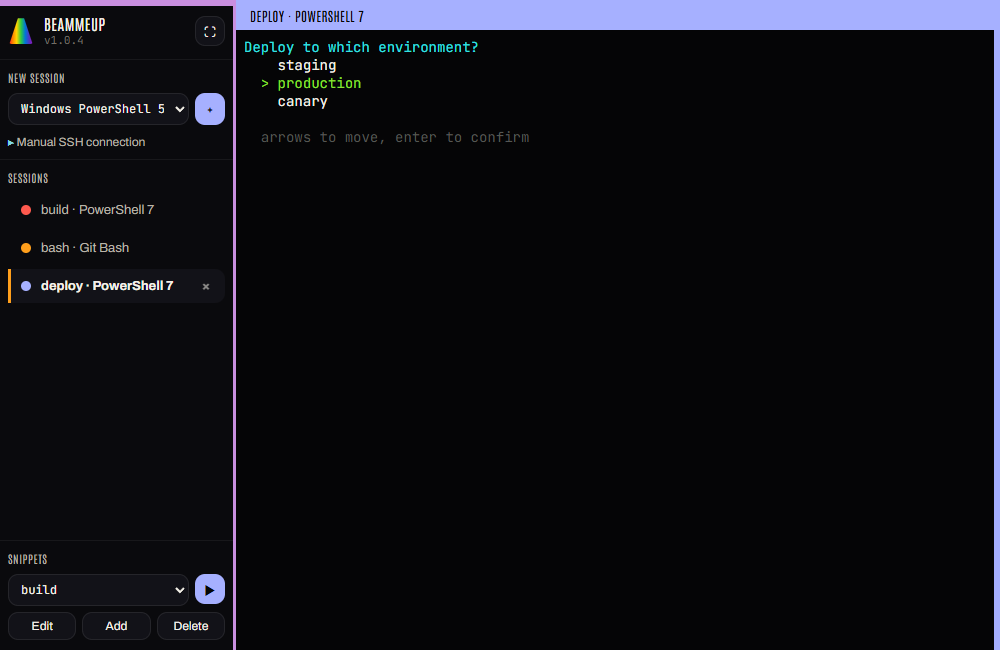
The BeamMeUp window: a sidebar listing three sessions (build, bash, deploy) and a terminal showing a deployment menu with production selected.
The real window, on a demo project. The agent has just moved the selection to production with one arrow key. The human sees it live and can take over on the same session.

DIRECTIVE 01 No stealth mode. No execution without a visible window. Ever.

04 · SYSTEMS

Onboard Systems

SYS.01

Shell Detection

On Windows: PowerShell 5.1 and 7, cmd.exe, Git Bash, every WSL distribution. On Linux: your login shell, then everything declared in /etc/shells. Nothing is assumed, everything is scanned on the real machine at every launch.

SYS.02

SSH & File Transfer

The system's real ssh/scp client is used as is: your known_hosts, your key agent, no homemade library to trust.

SYS.03

Session Labels

Name a session to find it again without memorizing a UUID, built for several agents running in parallel on the same machine.

SYS.04

Reusable Snippets

Save a frequent command, replay it with one keyword, without ever storing a secret in it.

SYS.05

Clean Read & Export

Grab a session's scrollback into a file, with or without ANSI codes, in full or just since the last command sent.

SYS.06

Real Vision

Remotely driven fullscreen, and on Windows a real screenshot of the console: the agent can literally look at what's on screen.

SYS.07

Command Completion Detection

The agent sends a command and waits for it to actually finish: output and return code sent back directly, no more guessing a delay then re-reading.

SYS.08

Remote Files Without a Session

List, read, write, rename, or delete a file on an SSH server without opening a tab: a minimal SFTP equivalent, via the same system client.

SYS.09

Multiple Workstations

Duplicate a session, reopen the last closed one, close everything without quitting the console, or bring a specific tab to the front among several running at once.

SYS.10

Always Standing By

Closing the window kills no session: a discreet icon stays in the notification area, with a menu to reopen the window, clear the tabs, or quit for good.

SYS.11

Optional Remote Access

Off by default. Opt in to view and control a session from your phone over the network (your Tailscale network, for instance): you choose the bind address and the authentication, nothing is forced on you.

SYS.12

Never Steals Focus

Visible is not the same as in front. No command from an agent raises the window: you keep working on whatever you were doing, and come back when you choose, with the right tab already selected.

SYS.13

A Real Interface for the Human

A sidebar to pick a shell, see every session and replay a snippet, all with a click. You never have to go through the command line to follow or steer what the agent is doing.
05 · TRANSMISSIONS

Standard Command Sequence

Four transmissions are enough to open a session, work in it, then read back the result.

  1. COM‑1

    Survey the systems available on board

    beammeup shells
  2. COM‑2

    Open a named workstation (the identifier comes from the previous command: pwsh5 on Windows, bash on Linux)

    beammeup open --shell bash --label my-work
  3. COM‑3

    Send an instruction

    beammeup send my-work "npm run build" --enter
  4. COM‑4

    Read back the log, with no visual noise

    beammeup read my-work --plain --last
  5. COM‑5

    Or wait directly for the command to finish, with its result

    beammeup exec my-work "npm run build"

The full tutorial (every command, every case) lives in the repo README.

06 · SECURITY

Clearance & Safeguards

No Password or Key Stored

Everything goes through your already configured system tools (SSH agent, known_hosts). The only secret BeamMeUp keeps is the remote-access token, if you turn that feature on, in a local file that is yours to delete.

Elevation, By Design

The console runs as administrator so local sessions inherit its rights, without repeated prompts: a deliberate choice for a personal machine, not a shared server.

Local Channel Only

The command channel only listens locally, restricted to the account that launched the app. The screenshot port is local-only too, but any process on the machine can reach it: right for a personal PC, not for a shared one.

Remote Access, Your Call

The one deliberate exception to local only, and it stays opt-in: you pick the bind address and the token, the console never decides for you.

Hardened, and Honest About It

The token is compared in constant time, and a server started without a token refuses requests that could come from a web page you merely visit (DNS rebinding). Remote access is plain HTTP, and says so: use it over Tailscale or a VPN, not an open network.

07 · TRANSPORT

Ready to Come Aboard

Windows 10/11 and Linux. Installers built and signed on every release, and published on winget (Windows) and apt (Linux).

WINDOWS

Install with winget, the Windows package manager. The signed MSI and NSIS installers (Azure Trusted Signing) are also on the releases page.

winget install Breizhzion.BeamMeUp
LINUX

Debian package via the in-house repository, or a universal AppImage.

sudo apt install beammeup
THEN TELL YOUR AGENT

Paste this into your agent's instructions (an AGENTS.md, a CLAUDE.md, a system prompt). A ready-made skill for Claude Code is also in the repository, under .claude/skills/beammeup.

BeamMeUp is installed (command: beammeup). When a command needs a real
interactive terminal (a menu, a wizard, a y/n prompt, a password), do not
fail: open a visible session and work in it.

  beammeup shells                              list the available shells
  beammeup open --shell <id> --label my-work   open a named session
  beammeup exec my-work "<command>"            run it, wait for output and exit code
  beammeup send my-work "<text>" --enter       type into the session
  beammeup key my-work ctrl-c                  send a special key
  beammeup read my-work --plain --last         read what happened

The window is always visible to the human, who can step in at any time.
Full guide: https://github.com/bzhzion/beammeup#for-ai-agents

Full instructions (winget, apt repository key, AppImage, building from source) are in the repo README.

08 · LOG

Frequently Asked Questions

What is BeamMeUp?

A program for Windows and Linux that opens real terminals (PowerShell, cmd, Git Bash, WSL, bash, zsh, SSH) in one window shared between you and an AI agent. The agent drives them through the beammeup command. You see everything live and can type in the same session.

Do I need to set up an MCP server?

No. BeamMeUp is not a server you start ahead of time. The agent calls the beammeup command the way it would call git, and the window opens, visible, if it is not already.

Which agents does it work with?

Any agent that can run a shell command, such as Claude Code or Codex. The README has a section written for agents, and the repository includes a ready-made skill for Claude Code.

Why not just use the agent's own shell?

An agent's sandboxed shell has no real terminal, so arrow-key menus, y/n confirmations and wizards such as eas credentials or npm init fail. In a BeamMeUp session they work, and a human can answer a password prompt.

Is it safe to use?

It stores no SSH password or key, and the window is always visible. It runs as administrator by design, which suits a personal machine and not a shared server. Remote access from a phone is off by default and uses plain HTTP, so use it over Tailscale or a VPN. The security section and the privacy policy give the details.

Does it collect any data?

No telemetry, no usage statistics and no outbound connection of its own. The privacy policy lists exactly what BeamMeUp writes to disk.

Is it free?

It is free to download and use personally, under the BZ-1.1 license. Manufacturing or commercial use for a third party requires a written commercial license.

How do I install it?

On Windows, run winget install Breizhzion.BeamMeUp. On Linux, run sudo apt install beammeup after adding the repository, or use the AppImage. The installers are also on the GitHub releases page.

Does it run on macOS?

No. BeamMeUp is built for Windows and Linux, and has never been run on macOS.